hexo 部署手册

Hexo 部署手册

Hexo搭建步骤

  1. 安装Git
  2. 安装Node.js
  3. 安装Hexo
  4. GitHub创建个人仓库
  5. 生成SSH添加到GitHub
  6. 将hexo部署到GitHub

1. 安装Git

1
sudo apt-get install git

安装好后,用git --version 来查看一下版本

2. 安装nodejs

1
2
sudo apt-get install nodejs
sudo apt-get install npm

检查一下有没有安装成功

1
2
node -v
npm -v

顺便说一下,windows在git安装完后,就可以直接使用git bash来敲命令行了,不用自带的cmd,cmd有点难用。

3. 安装hexo

1
npm install -g hexo-cli

依旧用hexo -v查看一下版本,至此就全部安装完了。

接下来初始化一下hexo

1
hexo init myblog

这个myblog可以自己取什么名字都行,然后

1
2
cd myblog //进入这个myblog文件夹
npm install

使用命令 hexo server 可缩写hexo s启动服务

1
$ hexo server

部署项目到Github远程仓库

  • 修改配置文件 _config.yml
1
2
3
4
5
6
# Deployment
## Docs: https://hexo.io/docs/one-command-deployment
deploy:
type: git
repo: git@github.com:2757412961/2757412961.github.io.git
branch: web
  • 操作命令
1
2
3
4
5
6
$ npm install hexo-deployer-git --save  #安装部署工具
$ hexo clean #清除缓存 可缩写hexo c
$ hexo generate #生成静态文件 可缩写hexo g
$ hexo deploy #部署到Github 可缩写hexo d
# 操作合集
hexo clean && hexo generate && hexo deploy

4. GitHub创建个人仓库

登录Github新建一个仓库,仓库名必须为你的Github用户名.github.io 例如: 我的用户名是:Lete 那么格式因该为:lete.github.io

image-20220903214114617

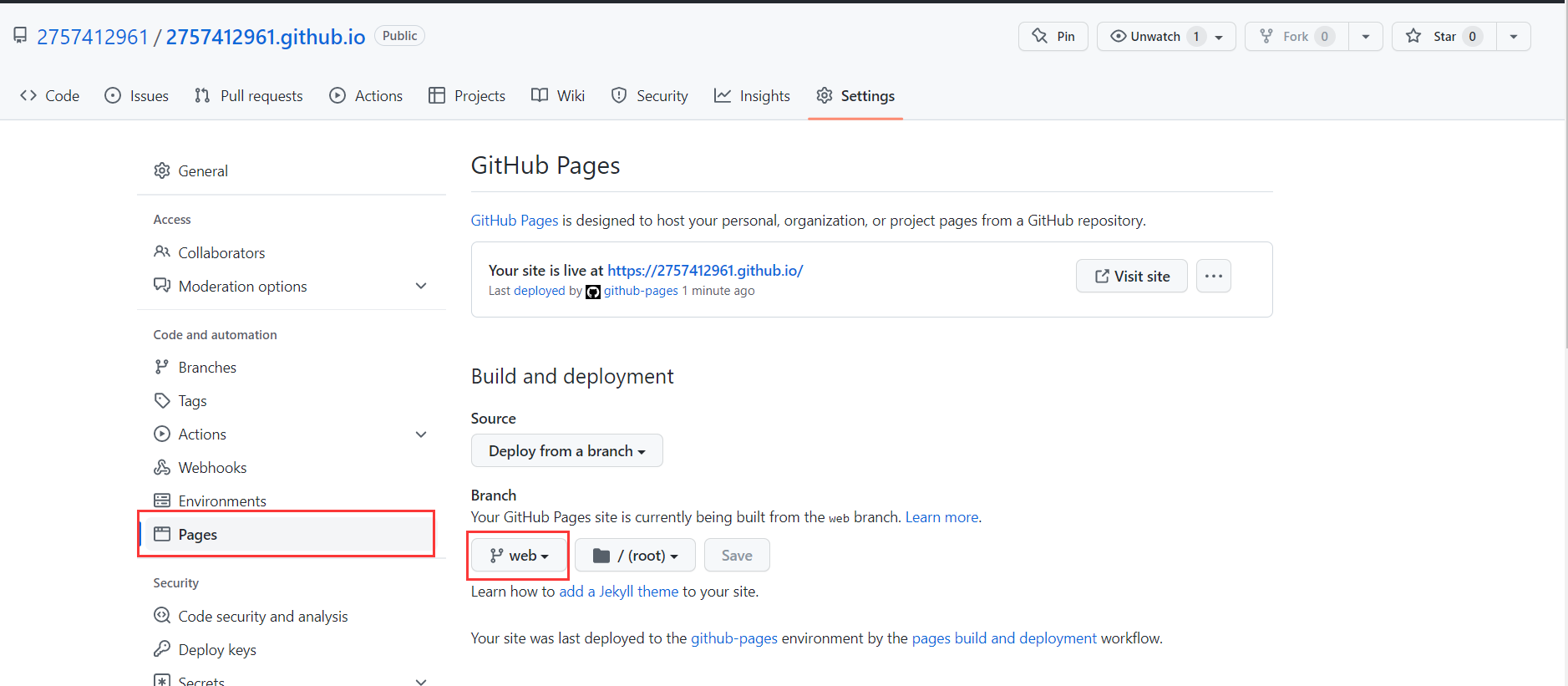
远程仓库开启 github pages,指定分支为上述提到的web

image-20220905104750608

5. 生成SSH添加到GitHub

安装成功后,将 git 与 GitHub 账号绑定,右键打开 Git Bash,然后设置配置信息:

1
2
3
# 配置用户名和邮箱
git config --global user.name "github 用户名"
git config --global user.email "github 注册邮箱"

比如我的配置就是:

1
2
git config --global user.name "2757412961"
git config --global user.email "2757412961@qq.com"

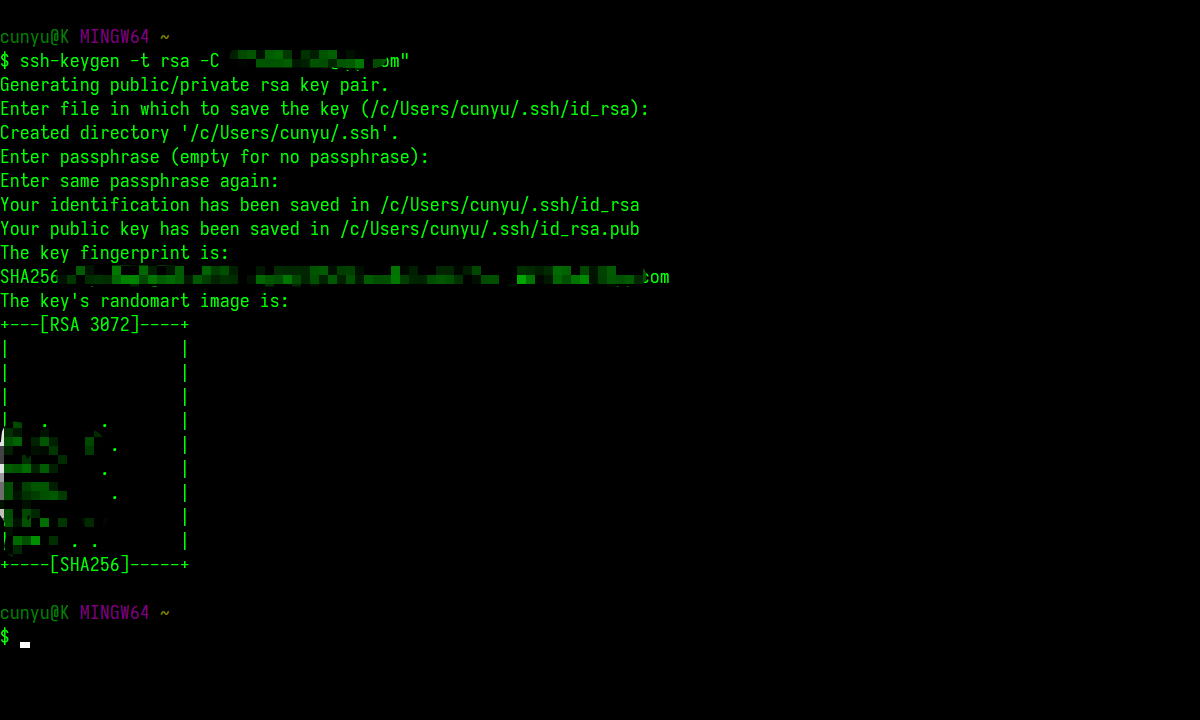
接着生成 ssh 密钥文件,输入如下命令后直接三次回车即可,一般不需要设置密码;

1
2
# 生成 ssh 密钥
ssh-keygen -t rsa -C "github 注册邮箱"

我生成秘钥的命令:

1
ssh-keygen -t rsa -C "2757412961@qq.com"

img

一般执行上述命令之后,会生成 id_rsaid_rsa.pub 两个文件,前者是我们私有的,而后者则是对外开放的。接着找到生成的 .ssh 的文件夹中的 id_rsa.pub 密钥,将内容复制;
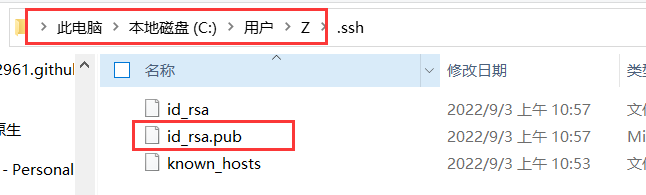
image-20220903214402850

然后打开 GitHub-Settings-Keys 页面,创建一个新的 SSH key,填写 TitleKeyTitle 可以随意,而 Key 的内容则是我们刚才复制的 id_rsa.pub 中的内容,最后点击 Add SSH key 即可;
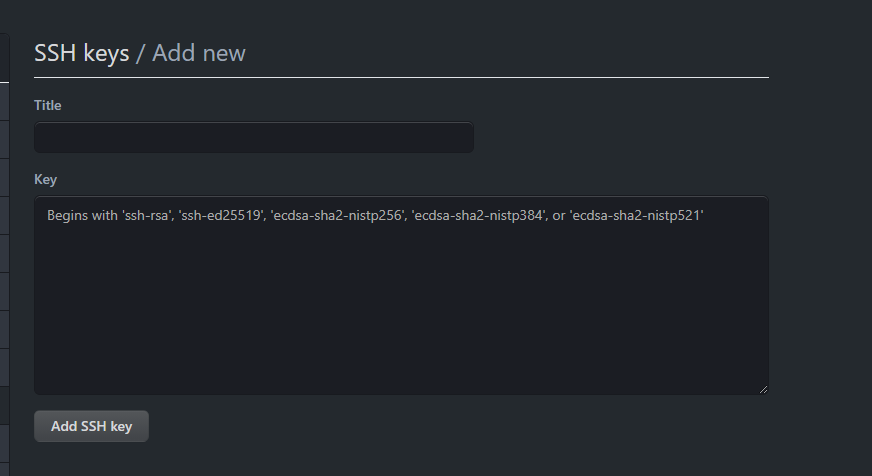
img

6. 将hexo部署到GitHub(手动)

这一步,我们就可以将hexo和GitHub关联起来,也就是将hexo生成的文章部署到GitHub上,打开站点配置文件 _config.yml,翻到最后,修改为 YourgithubName就是你的GitHub账户

1
2
3
4
5
6
# Deployment
## Docs: https://hexo.io/docs/one-command-deployment
deploy:
type: git
repo: git@github.com:2757412961/2757412961.github.io.git
branch: web

然后

1
hexo clean && hexo generate && hexo deploy

7.GitHub Actions(自动)

1
就是DevOps,可以理解成 GitHub 通过一些流水线的配置(CI/CD),然后在本地推送代码的时候触发流水线执行,自动部署站点。

7.1 新建 .github/workflows/pages.yml 文件

修改

1
2
3
4
5
6
7
8
9
10
11
# 触发器、分支
on:
push:
branches:
- main # default branch

...

deploy_key: ${{ secrets.ACTIONS_DEPLOY_KEY }}
user_name: 2757412961
user_email: 2757412961@qq.com
1
2
3
4
5
6
7
8
9
10
11
12
13
14
15
16
17
18
19
20
21
22
23
24
25
26
27
28
29
30
31
32
33
34
35
36
37
38
39
40
41
42
43
44
45
46
47
48
49
50
51
52
53
54
55
56
57
58
59
60
61
62
63
64
65
66
67
68
69
70
71
72
name: Pages

# 触发器、分支
on:
push:
branches:
- main # default branch
jobs:
# 子任务
pages:
runs-on: ubuntu-latest # 定运行所需要的虚拟机环境
permissions:
contents: write
steps:
- uses: actions/checkout@v2
# with:
# submodules: true
# fetch-depth: 0
# 每个name表示一个步骤:step
- name: Use Node.js 16.x
uses: actions/setup-node@v2
with:
node-version: '16.14.1' # 自己正在使用的node版本即可
# - run: node -v # 查看node版本号
# 缓存依赖项: https://docs.github.com/cn/actions/using-workflows/caching-dependencies-to-speed-up-workflows
- name: Cache NPM dependencies
uses: actions/cache@v2
with:
# npm cache files are stored in `~/.npm` on Linux/macOS
path: ~/.npm
# path: node_modules
key: ${{ runner.OS }}-npm-cache
restore-keys: |
${{ runner.OS }}-npm-cache
# 查看路径 : /home/runner/work/blog/blog
# - name: Look Path
# run: pwd
# 查看文件
- name: Look Dir List
run: tree -L 3 -a
# 第一次或者依赖发生变化的时候执行 Install Dependencies,其它构建的时候不需要这一步
- name: Install Dependencies
run: npm install
- name: Look Dir List
run: tree -L 3 -a
# - name: clean theme cache
# run: git rm -f --cached themes/tenacity
# run: git submodule deinit themes/tenacity && git rm themes/tenacity
# 安装主题
- name: Install Theme
run: git submodule add https://github.com/all-smile/tenacity.git themes/tenacity
- name: Clean
run: npm run clean
- name: Build
run: npm run build
- name: Deploy
uses: peaceiris/actions-gh-pages@v3
with:
deploy_key: ${{ secrets.ACTIONS_DEPLOY_KEY }}
user_name: 2757412961
user_email: 2757412961@qq.com
# 获取提交文章源码时的commit message,作为发布gh-pages分支的信息
commit_message: ${{ github.event.head_commit.message }}
full_commit_message: ${{ github.event.head_commit.message }}
github_token: ${{ secrets.GITHUB_TOKEN }}
# GITHUB_TOKEN不是个人访问令牌,GitHub Actions 运行器会自动创建一个GITHUB_TOKEN密钥以在您的工作流程中进行身份验证。因此,您无需任何配置即可立即开始部​​署
publish_dir: ./public
allow_empty_commit: true # 允许空提交
# Use the output from the `deploy` step(use for test action)
- name: Get the output
run: |
echo "${{ steps.deploy.outputs.notify }}"

7.2 修改 _config.yml 文件中的Deploy配置

1
2
3
4
5
6
7
8
# Deployment
## Docs: https://hexo.io/docs/one-command-deployment
deploy:
type: git
repo: git@github.com:2757412961/2757412961.github.io.git
branch: web
# 默认提交信息: Site updated: {{ now('YYYY-MM-DD HH:mm:ss') }}
message: ${{ github.event.head_commit.message }} # 直接将提交消息传输到 GitHub Pages 存储库

7.3 设置 deploy_key

拿到第5步中生成的密钥。

  • id_rsa 私钥
  • id_rsa.pub 公钥

转到Deploy Keys并使用Allow write access添加您的公钥id_rsa.pub,name写为HEXO_ACTIONS_DEPLOY_KEY,指定用途,方便后面维护
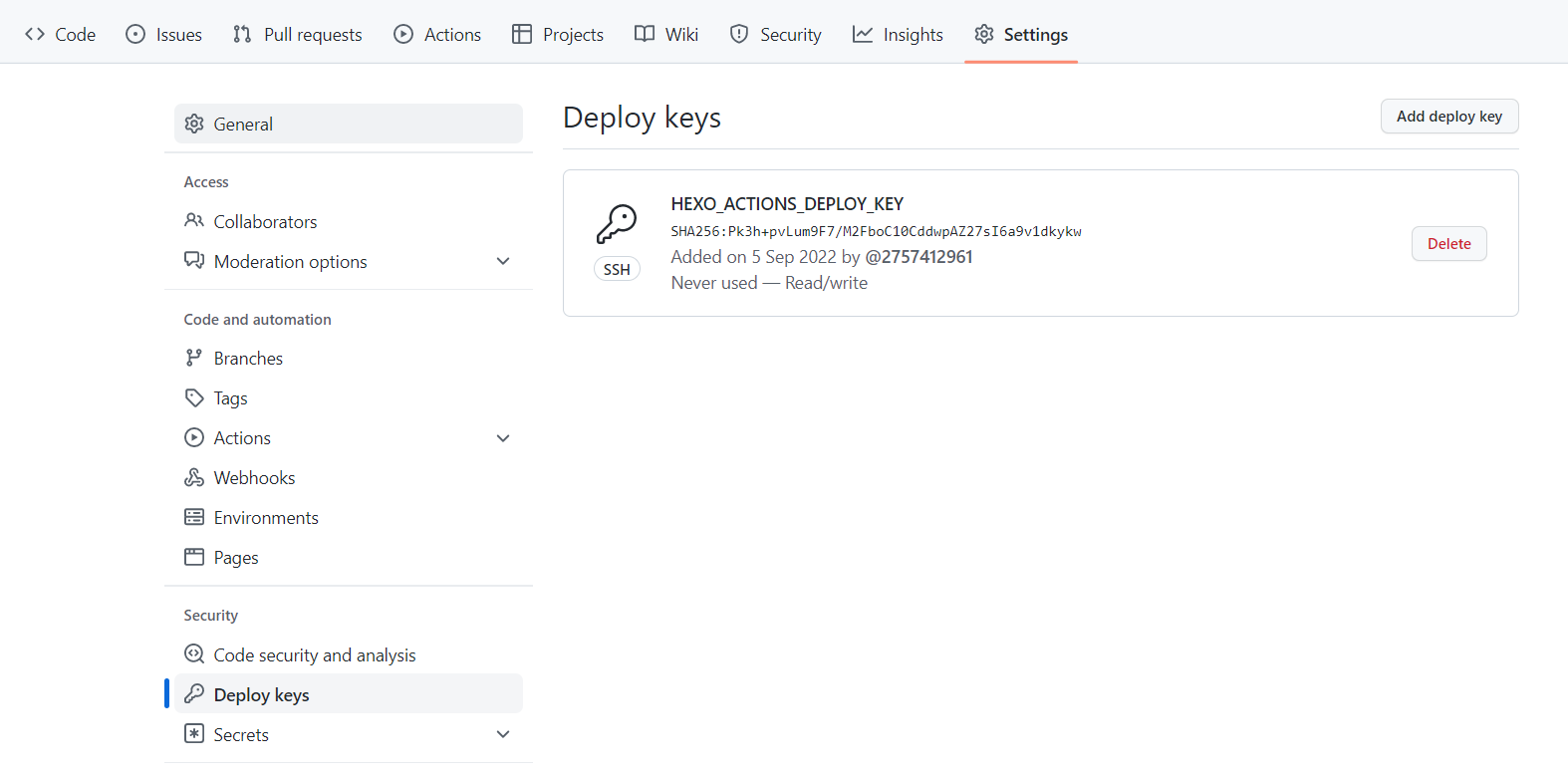
image-20220905113340582

转到Actions secrets并将您的私钥 id_rsa 添加为 ACTIONS_DEPLOY_KEY(这个名称在yml文件中需要使用)
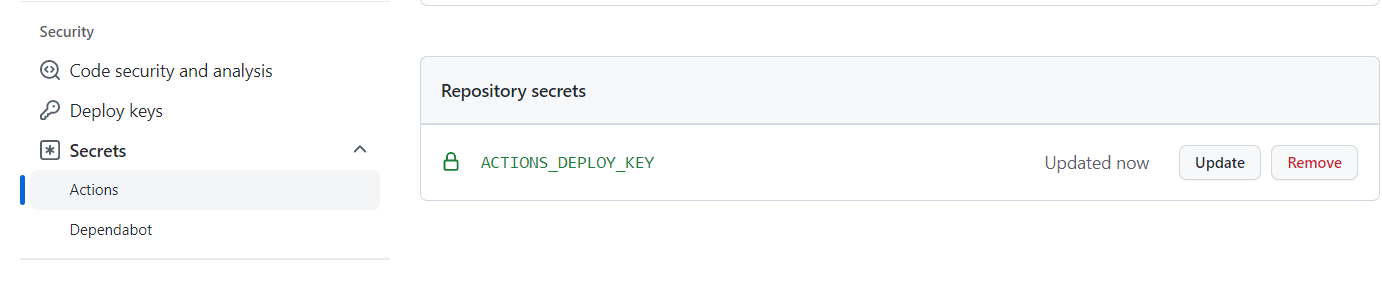
image-20220905111813096

7.4 启动 Git Action

本地仓库直接push,触发 GitHub Actions 自动构建发布
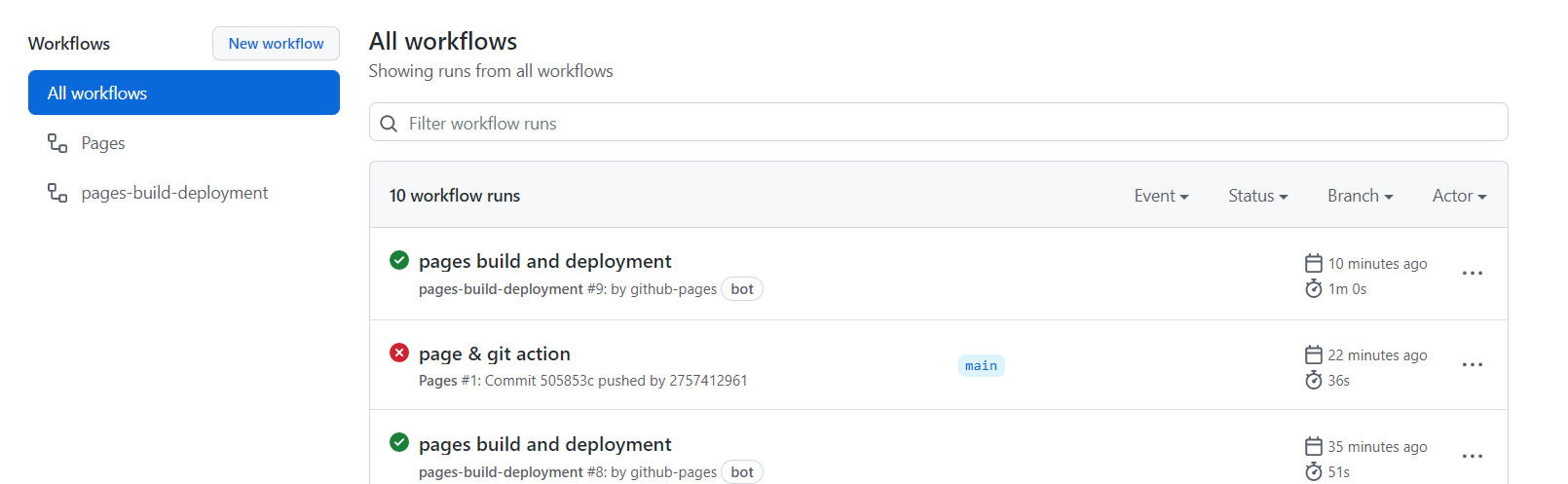
image-20220905112116599

7.5 非法输入值

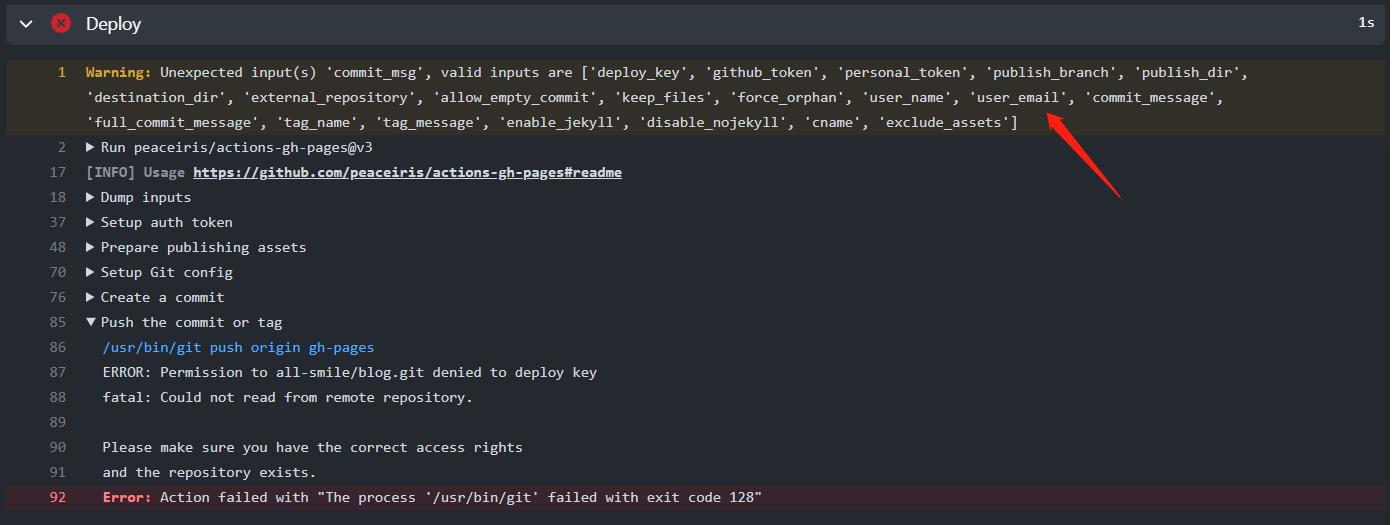
pages.yml 文件的 Deploy 步骤下,发布的时候需要一些参数配置,这些参数名是指定好的,不可以随便写,比如 commit_msg应该使用 commit_message

Warning: Unexpected input(s) ‘commit_msg’, valid inputs are [‘deploy_key’, ‘github_token’, ‘personal_token’, ‘publish_branch’, ‘publish_dir’, ‘destination_dir’, ‘external_repository’, ‘allow_empty_commit’, ‘keep_files’, ‘force_orphan’, ‘user_name’, ‘user_email’, ‘commit_message’, ‘full_commit_message’, ‘tag_name’, ‘tag_message’, ‘enable_jekyll’, ‘disable_nojekyll’, ‘cname’, ‘exclude_assets’]
img

8 参考文献

https://www.cnblogs.com/all-smile/p/16608503.html

文章作者: ZJH
文章链接: http://example.com/2022/09/02/部署手册/
版权声明: 本博客所有文章除特别声明外,均采用 CC BY-NC-SA 4.0 许可协议。转载请注明来自 Zany's Blog